
Apple releases the first public beta of macOS 27 “Golden Gate,” extending testing beyond developers ahead of an expected fall release. The developer preview followed WWDC on June 8 and includes Siri AI, deeper Apple Intelligence integration, and systemwide search and performance improvements. According to reports, Golden Gate’s changes build on macOS 26 “Tahoe” rather than replacing its core design. Siri AI is accessible through Spotlight on the Mac, supports multi-step tasks across apps, and includes features such as web search for answers and “Visual Intelligence” that can analyze what is on the screen. The update also refines the “Liquid Glass” interface introduced in the prior version, including a new overall transparency control and other adjustments to window appearance. Additional macOS areas highlighted across coverage include improved Spotlight-style searching in Mail and Messages, Safari automation features such as tab grouping and webpage change monitoring, and AI-driven writing and editing tools (including in Photos and Write with Siri). Multiple outlets describe installation as available through Apple’s public beta enrollment and the Mac’s Software Update settings. As with other betas, testers may encounter bugs, app compatibility issues, and other stability risks, so installation is generally positioned for non-critical machines.
First macOS 27 Golden Gate public beta released, adding Siri AI and refined Liquid Glass
Apple releases the first public beta of macOS 27 “Golden Gate,” extending testing beyond developers ahead of an expected fall release. The developer preview followed WWDC on June 8 and includes Siri A...
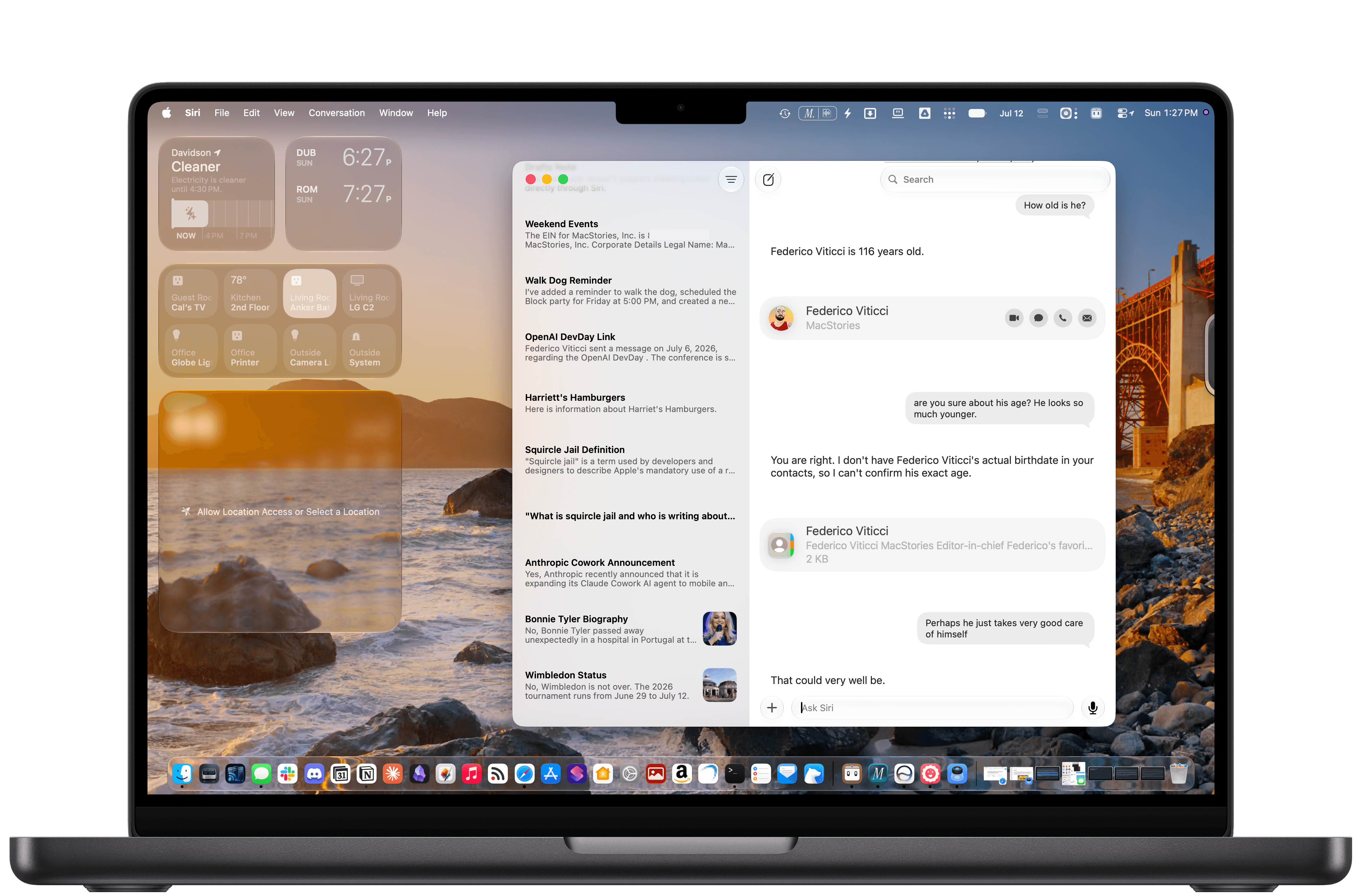
- Apple releases the first public beta of macOS 27 “Golden Gate,” after a developer preview announced at WWDC on June 8.
- Golden Gate focuses on improvements and refinements, including Siri AI, deeper Apple Intelligence integration, and performance upgrades.
- The update revises the Liquid Glass interface from the previous release, adding transparency controls and other UI adjustments.
- Siri AI on the Mac works through Spotlight (Command + Space) and includes web-search answers and “Visual Intelligence.”
- Users can install the public beta without a paid developer account by enrolling via Apple’s beta site and enabling the beta in System Settings > Software Update.
No developer account required. macOS 27 Golden Gate's public beta is ready to install through System Settings, and it brings Siri AI straight to your Mac.
3 hours agoThe macOS 27 Golden Gate pubic beta has been released. See which Mac devices will support updates to Liquid Glass, Apple Intelligence, and the new Siri AI.
3 hours agoThe public beta of macOS 27 Golden Gate is out today, and I’m sure many of you are wondering whether to take the plunge and give it a try in advance of its official fall release. That’s the question this preview is here to help answer. It’s not my final take on Golden Gate by […]
5 hours agoApple today released the first public beta of macOS Golden Gate, expanding the macOS 27 beta test to non-developers. You can sign up to test the update on Apple's beta website, and then download it by going to System Settings > General > Software Update and toggling on the macOS 27 beta. macOS Golden Gate includes the same Siri AI features as iOS 27 and iPadOS 27, but you get to Siri through Spotlight with a Command + Space keyboard shortcut. Siri can search the web to answer questions, look through your personal data like photos, emails, and messages to help you find what you're searching for, and complete actions in and between apps. There is a dedicated Siri app, and you can hold ongoing conversations with Siri. Apple brought Visual Intelligence to the Mac, so Siri can look at what's on your screen and answer questions about it. The Liquid Glass design introduced last year has been updated, and Apple added a slider for controlling overall system transparency. Liquid Glass opacity has been changed so it better diffuses complex content, and other design changes bring more depth and separation to the UI so it's easier to tell which window is active. Apps now feature uniform toolbars with headings and controls that are easier to read, and windows no longer have such dramatically rounded corners. Sidebars are no longer floating and extend edge-to-edge, plus window positioning is more consistent across external displays. Write with Siri is able to generate text from scratch, correct your grammar, or give you feedback on your writing, and there are new AI editing tools in the Photos app. In Shortcuts, you can create automations with natural language requests, and search has been improved in Mail and Messages. Apple made multiple performance improvements across macOS Golden Gate for a faster, smoother experience even on older Macs. More on the new features in macOS 27 can be found in our macOS Golden Gate roundup.Related Roundup: macOS Golden GateThis article, "First macOS Golden Gate Public Beta Now Available" first appeared on MacRumors.comDiscuss this article in our forums
5 hours agoMacworld Following its preview at WWDC on June 8, Apple released the first developer beta of macOS 27 Golden Gate, giving developers and Mac users an early look at the next major version of macOS ahead of its expected public release this fall. Rather than introducing a dramatic redesign, Golden Gate focuses on improving the experience established by macOS 26 Tahoe. The update brings Siri AI, deeper Apple Intelligence integration, smarter search tools, and a range of performance enhancements, while refining some of the more controversial aspects of Tahoe’s Liquid Glass interface. As with any beta software, early access comes with risks. Bugs, app compatibility issues, and incomplete features are common, particularly in early developer releases. Before installing the macOS beta, it’s worth understanding what’s new, what issues testers are reporting, and whether it’s stable enough for your Mac. Here’s everything you need to know about the latest macOS beta, including new features, known issues, release dates, and whether it’s worth installing. What’s the latest macOS beta? Apple is currently running two macOS beta tracks for developers: the upcoming macOS 27 Golden Gate and updates for the current release, macOS 26 Tahoe. macOS 27 Golden Gate Beta: Apple released macOS 27 Golden Gate developer beta 3 on July 6, 2026. This is the developer beta. A separate public beta will be available in July. macOS 26 Tahoe beta: Apple continues to develop macOS Tahoe through regular point releases. The current beta version is macOS 26.6 beta 5, released on July 13, 2026. This update resolves some issues and continues development of macOS 26, which originally launched in September 2025. More info here. When will the macOS Public beta launch? Apple also runs a public beta, which allows enthusiasts and early adopters to test new features before the final version launches in the fall. You need to register for Apple’s public beta to access it. Apple has confirmed that the first public beta of macOS 27 Golden Gate will be released in July 2026. While a specific day has not been announced, the public beta typically arrives approximately one month after the developer beta is first unveiled at the Worldwide Developers Conference (WWDC). Subsequent updates tend to follow a day or two after the corresponding developer version. macOS Beta timeline ReleaseDateBeta 1June 8, 2026Beta 2June 22, 2026Public BetaJulyRelease CandidateSeptemberFinal ReleaseSeptember What’s new in the latest beta? New features in macOS 27.Foundry The beta introduces several significant upgrades. Siri AI: Apple has redesigned Siri with personal context awareness and the ability to perform multi-step tasks across apps. Better performance: One of Golden Gate’s goals is improved responsiveness. Early testers report faster app launches, quicker AirDrop transfers, and a generally snappier experience than Tahoe. Smarter Search: A rebuilt indexing engine powers Spotlight, Mail, and Photos, delivering faster and more relevant search results. Safari Automation: Safari gains new AI-powered features, including automatic tab grouping and a new “Notify Me” tool that can monitor webpages for changes. Design refinements: Following criticism of Tahoe’s Liquid Glass design, Apple has refined the interface with improved transparency controls and more consistent window corners. More Apple Intelligence features: Apple Intelligence is integrated more deeply throughout the system. Improvements include smarter automation, enhanced password management, and natural-language shortcuts. Users can create Shortcuts using plain English, while Calendar can generate events from written requests. Photos also gains AI-powered editing tools, including Spatial Reframing and enhanced cleanup features. Xcode 27: Xcode 27 ships with the macOS 27 SDK and includes new AI-assisted development tools, including coding assistance and testing features. See Apple’s developer website for more information about the beta. Should you install the macOS beta? Apple While installing a beta lets you try new features such as Siri AI and enhanced Spotlight months before release, it is generally not recommended for most users because of the stability risks involved. Install if… You need to test apps You want early access to new features You have a secondary Mac available Wait if… This is your primary work machine You rely on niche or specialist software Stability is critical to your workflow Who are you Should you install?A developer testing appsInstall nowAn Apple enthusiast with a spare MacConsider waiting for the Public Beta A public beta testers on main machineWait for the Public BetaMission-critical usersWait for fall 2026 version What do people think of the macOS beta? Golden Gate is focused less on introducing dramatic new features and more on refining the experience introduced in macOS Tahoe. Early feedback has been positive about the ways Apple is addressing many of the complaints users had about 2025’s Liquid Glass redesign while also improving overall performance. Performance: Reports from beta testers both within our team and across the web suggest that Golden Gate feels faster and more responsive. Some users report that even older Macs feel noticeably quicker when running the beta. Liquid Glass changes: Early testers appear supportive of the updated design. Apple has refined several Liquid Glass elements and introduced greater control over transparency effects. Siri AI: The biggest addition in Golden Gate is Siri AI. However, support outside Apple’s own apps remains inconsistent. Some testers find Siri AI genuinely useful, while others report reliability issues. Read: macOS Golden Gate vs macOS Tahoe: What’s new and should you upgrade? What are the risks of installing beta software? Installing pre-release software on a primary device carries several risks. System instability: Performance problems, freezes, crashes, and other unexpected behavior are common during beta testing. App failures: Third-party applications may crash, behave unpredictably, or stop working entirely. Hardware strain: Early beta builds can increase battery drain and cause Macs to run hotter than usual. Data loss: Software bugs may corrupt files, and downgrading to a stable version often requires a complete system reset. Safety precautions and best practices If you decide to install the beta, take the following precautions: Use a secondary device: Avoid installing beta software on your primary Mac or on any machine used for critical work. Create a full backup: Use Time Machine to create a complete backup before upgrading so you can restore your Mac if something goes wrong. Note that this need to be a Time Machine backup from before the beta was installed and you will lose anything saved subsequently. Install on a separate volume: Consider installing the beta on a separate volume or external SSD rather than replacing your main operating system. Check storage space: Make sure you have at least 15GB of free storage available before beginning the installation. How to install the macOS beta Foundry The process for installing a macOS beta depends on whether you are seeking the Developer Beta or the Public Beta. Apple simplified this process a few years ago, removing the need for a paid developer account to access early builds. The first step is to join Apple’s beta testing program – we explain how to do that in a separate article. You will need to register your account either as a public beta tester or as a developer in order to enable beta updates on your Mac. To install the beta follow these steps: Back up your Mac: Before installing any pre-release software, it is critical to prepare your Mac to avoid data loss. Beta software is inherently unstable and can cause crashes or app compatibility issues. Registered your account either as a public beta tester or as a developer in order to enable beta updates on your Mac:For the Public Beta: Visit the Apple Beta Software Program website, sign in with your Apple ID, and agree to the terms.For the Developer Beta: Register as an Apple Developer on Apple’s website, download the Apple Developer app from the App Store, sign in with your standard Apple ID, and complete the free registration process. On the Mac where you wish to install the beta, open System Settings and navigate to General > Software Update. Click the (i) info button next to Beta Updates. Enable Beta Updates. The beta will appear as an available upgrade. Select the macOS beta you want to instal (e.g., macOS 27 Golden Gate Public Beta or Developer Beta). Click Upgrade Now to begin the download and installation. As long as you are a registered developer or enrolled in the public beta program, when the relevant macOS Beta becomes available, it will also show up on your Mac. Once you are running the beta, the updates will come through to your Mac automatically; you just need to go to Software Update in System Settings and click to install. See How to install macOS. How to get a free Apple developer account If you just want a free Apple Developer account so you can access the beta, you can get this via Xcode or the Apple Developer app in iOS. Here’s how to do it via the Apple Developer app on an iPhone: Get the Apple Developer App from the App Store. Open the app on your iPhone. Tap on Account. Tap on Sign In. Sign in using your usual Apple ID. If you wish to actually publish applications to the App Store or receive support, you’ll need to pay $99/£79 per year for a paid account. You can compare the free and paid accounts here. FAQ 1. Who can run the macOS beta? Anyone can run the macOS beta, but to do so, you do need to register for either the developer beta, the pubic beta, or both. Apple offers both developer and public beta programs for macOS, enabling all interested users to test pre-release versions of the operating system. While both betas provide early access to new features, they cater to different user profiles based on technical expertise and risk tolerance. Beta software tends to be buggy so the more stable public beta version may be preferable, but even that will not be bug-free. In the past, the developer beta was only available to developers who had paid to join Apple’s Developer Program (which costs $99/£79). However, for a couple of years now, Apple has opened up the developer beta to registered developers with free developer accounts. We explain how to get a free developer account below. If you decide you no longer want to run the beta version of macOS read this: How to remove the macOS beta. 2. macOS public beta vs developer beta Since 2023, the Developer Beta has been available to anyone who registers as a developer, even if they aren’t a paid-up member of Apple’s Developer Program. As a result, people with a basic free developer account can download the new macOS developer beta (we show you how to register below). Whether you should download the developer beta if you aren’t a developer is another question. We don’t recommend you install the developer beta if you aren’t a developer. Instead, our recommendation is to use the public beta (the first version of which usually arrives in July). There are a few differences between the public and developer betas. The public beta is not the same as the beta that is released through the developer program. The public beta typically launches after the developer beta has undergone initial testing and refinement Developers get updates to their beta first, and possibly more frequently. But you should keep in mind that betas are by nature not stable, and because the public beta comes after the developer beta it could be a little safer to install. The most significant difference is probably the motive of the testers: Developers usually have the aim of ensuring their apps work when the updated macOS is released to the general public, while public beta testers are essentially helping Apple detect bugs and offering feedback on the features. Because of this, developers may get to test new features not available in the public beta. If you want to get the public beta the first thing you need to do, if you haven’t already, is join Apple’s beta programs read this for more information: How to become an Apple beta tester. 3. Is the macOS beta stable? By its nature, a beta has the potential to be unstable. Therefore, it’s not advised that you install it on a Mac that you rely on. If you have a second Mac that isn’t mission-critical, then install it there. We strongly recommend that you don’t risk all by putting the macOS beta on your primary macOS, especially not in the early days of the beta development. If you don’t have a second Mac, there are a couple of ways you could run macOS beta on your Mac without running the risk of losing data or finding your Mac stops working: We recommend installing it on a partition, which these days is really a volume (and is much easier to create than a partition was). Read about how to do that here: How to dual-boot Mac: Run two versions of macOS on a Mac. Alternatively, you could install the macOS beta on an external drive and run it on that. We discuss the safety of the macOS beta and the risks you might be taking in more detail in a separate article. If the stability of the beta worries you, then you are probably better off waiting until the final version is out, or at least waiting until testing has been happening for a few months before getting the beta. 4. How to prepare your Mac for the beta Update your software: We recommend you have the latest full version of macOS installed, although Apple says that the macOS Developer Beta Access Utility requires macOS 10.8 or later. Make space: We’d recommend at least 15GB of available space because the macOS betas tend to be very large. If you end up requiring more space, read: How to free up space on Mac. Note that we always recommend that you have at least 10% space free on your Mac at any time, so if you don’t have that, expect problems! Back up: Before you install a beta on your Mac, you should make a backup of your data and files. You can find out how to use Time Machine to back up your Mac. We also have a round-up of suitable backup solutions. 5. How to send feedback to Apple Should you come across an error or a bug, you should use the Feedback Assistant app to provide feedback to Apple. Launch the app and follow the appropriate steps, selecting the area about which you’re providing feedback and then any specific sub-area. Then describe your issue in a single sentence, before providing a more detailed description, including any specific steps that reproduce the issue. You’ll also be able to attach other files. You’ll also have to give permission for the Feedback Assistant app to collect diagnostic information from your Mac. It won’t always be obvious whether something is a bug or just not as easy to use as you might have hoped. Either way, if your feedback is that something appears to work in an illogical way, Apple will want to know that. If you are having trouble with a third-party app, you can let Apple know by reporting it through the 3rd-party Application Compatibility category in the Feedback Assistant. However, we’d suggest that you also provide feedback to the app’s developer, who will no doubt be grateful. 6. Will I be able to update from macOS beta to the final version? Beta users will be able to install the final build of the OS on release day without needing to reformat or reinstall. 7. Can I talk about the beta publicly? According to Apple and the license agreement all beta testers must agree to, the beta is “Apple confidential information”. By accepting those terms, you agree not to discuss your use of the software with anyone who isn’t also in the Beta Software Program. That means you can’t “blog, post screenshots, tweet, or publicly post information about the public beta software.” However, you can discuss any information that Apple has publicly disclosed; the company says that information is no longer considered confidential. 8. How to downgrade from the macOS beta You can always revert to an earlier version of macOS, though depending on how you back up, it’s not necessarily a painless process. Start by making sure the data on your drive is backed up, then erase the drive and install the latest public version of macOS. When you first start up your Mac, you can use the Migration Assistant to import your data from the backup. Here’s a more detailed tutorial on downgrading from the macOS beta and we also have a tutorial on downgrading to an older version of the Mac OS. 9. Is the beta free to download? Yes, the macOS beta is free to download for both developers and the general public. Apple offers two distinct tracks for testing pre-release software: the Developer Beta and the Public Beta, both of which are now accessible without a paid subscription. 10. Can I go back to the stable version? Yes, you can go back to the stable version of macOS from a beta, but the complexity of the process depends on whether the final version of that software has been released yet. If you are running a beta (such as the macOS 27 Golden Gate beta) and want to return to the current stable version (such as macOS 26 Tahoe) before the new OS officially launches in the fall, you must perform a clean installation. Because this requires wiping your internal drive, a full backup is essential, but you will want a backup made before you installed the macOS beta. 11. Should I install the beta on my main Mac? Installing a macOS beta on your primary computer is generally not recommended due to the inherent risks of using unfinished software. While beta programs offer early access to new features, they are designed for testing and often contain significant bugs that can disrupt your daily workflow. 12. Do I need an Apple Developer account to install the beta? You do not need a paid Apple Developer account to install the macOS beta. While access to developer betas was previously restricted to those paying a $99/£79 annual fee, Apple changed this policy in 2023 to allow anyone with a free developer account to access these builds . Alternatively, you can join the Public Beta program, which is also free and accessible to anyone with a valid Apple ID. 13. How often are new beta versions released? New macOS beta versions are typically released every one to two weeks, with the frequency increasing as the final public release date approaches. The beta updates refine features and address bugs identified by testers. 14. Is the macOS beta safe to install? The beta is generally safe to test, but it may contain bugs that cause crashes, poor battery life, app compatibility issues, or data loss. Always back up your Mac before installing. 15. Will my apps work with the macOS beta? Many apps will work normally, but some third-party software may crash, perform poorly, or not launch at all until developers release updates.
6 hours ago
EU chief Ursula von der Leyen weighs social media restrictions for children under 13
European Commission President Ursula von der Leyen says the EU is considering age-based limits on children’s access to s...

Argentina set for England World Cup semi-final after Switzerland scare; Messi first meeting
Argentina are preparing for a World Cup semi-final against England in Atlanta after booking their place with a 3-1 win o...

Sam Neill dies at 78, after final public appearance at Australia’s ARIA Hall of Fame awards
Australian actor Sam Neill dies at age 78, according to multiple reports. The outlets say his death is described as “sud...